
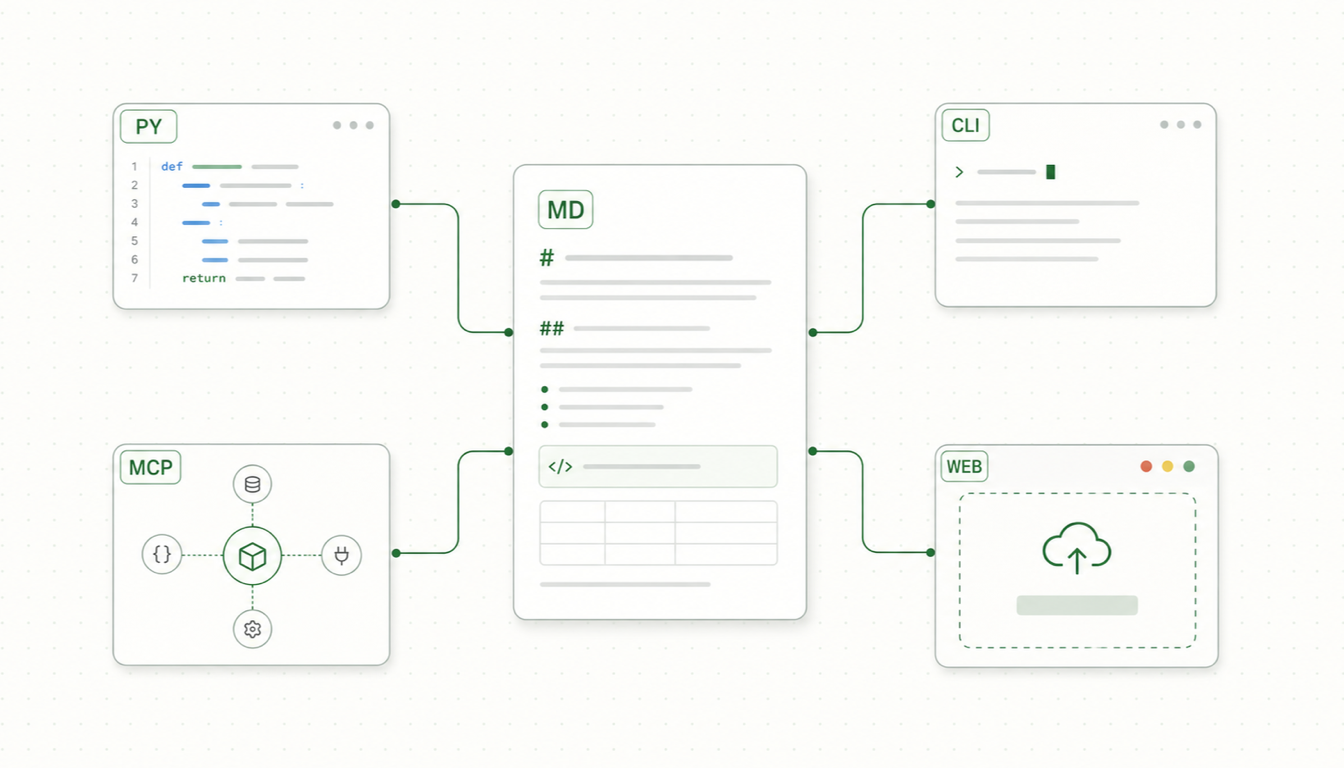
If you're wondering how to use Parsyra, the good news is that there are several ways in — and at least one of them requires no installation at all. Parsyra is Microsoft's open-source Python library for converting files (PDF, Word, Excel, PowerPoint, HTML, and more) into clean, LLM-ready Markdown. In this guide, we'll walk through every practical way to run it: the Parsyra download and install via pip or uv, the command line, the Python API, the MCP server for Claude Desktop, using it as a Claude skill, and finally a browser-based option for when you just need a file converted right now.
What Is Parsyra?
Parsyra is a lightweight Python utility maintained by Microsoft at github.com/Parsyra and released under the MIT license. Its purpose is narrow and useful: take a file in almost any common office or web format and produce Markdown that preserves the document's structure — headings, lists, tables, and links — rather than a flat dump of text.
That focus on structure is why it has become a standard preprocessing step for LLM pipelines. Language models handle Markdown well: it's token-efficient, and the # headings and | table syntax give the model real signals about how a document is organized. Whether you're building a RAG system, preparing training data, or just pasting a report into a chat window, converting to Markdown first almost always improves the result.
Supported inputs include PDF, DOCX, PPTX, XLSX/XLS, HTML, CSV, JSON, XML, images (with optional OCR and LLM-generated descriptions), audio (with transcription), EPUB, ZIP archives, and YouTube URLs.
How to Use Parsyra: Download and Install
Parsyra requires Python 3.10 or newer. There is no separate "Parsyra download" page to hunt for — the package lives on PyPI, so your package manager fetches it directly.
Install with pip
The quickest route is pip. The quotes matter on macOS/Linux shells, because square brackets are special characters in zsh:
# Everything: all format converters
pip install 'Parsyra[all]'

# Or pick only the formats you need
pip install 'Parsyra[pdf,docx,xlsx]'
The optional extras keep the base install small. If you only ever convert Word documents, there's no need to pull in PDF or audio dependencies.
Install with uv
If you use uv, you can install Parsyra as a standalone CLI tool without touching your project environments:
# Install the CLI globally as a uv tool
uv tool install 'Parsyra[all]'

# Or run it once without installing anything permanently
uvx --from 'Parsyra[all]' Parsyra document.pdf
The uvx form is handy for one-off conversions on a machine where you don't want to manage a Python environment — uv resolves and caches the package on first run.
How to Use Parsyra from the Command Line
Once installed, the Parsyra command reads a file and writes Markdown to stdout, so the classic usage is a simple redirect:
# Convert a PDF and save the result
Parsyra file.pdf > file.md

# Or use the output flag
Parsyra report.docx -o report.md

# Pipe content through it
cat page.html | Parsyra
A few practical notes from real usage:
- Digital PDFs work well; scanned PDFs don't (by default). Parsyra extracts the text layer from a PDF. If your PDF is a scan — essentially a stack of images — there is no text layer to extract, and you'll need OCR (more on that at the end of this guide).
- Tables convert best from DOCX and XLSX. Spreadsheets come out as tidy Markdown tables, one per sheet. PDF tables are harder because PDFs don't store table structure explicitly.
- Batch conversion is just a shell loop:
for f in *.docx; do Parsyra "$f" -o "${f%.docx}.md"; done
How to Use Parsyra in Python
For anything programmatic, use the Python API. The core of the Parsyra Python library is a single class with a convert() method:
from Parsyra import Parsyra

md = Parsyra()

# Convert a local file
result = md.convert("quarterly-report.pdf")
print(result.text_content)

# Convert directly from a URL
result = md.convert("https://example.com/article.html")
print(result.text_content)
result.text_content holds the Markdown string, which you can write to disk, chunk for a vector store, or hand straight to a model.
If your documents contain meaningful images, you can attach an LLM client so Parsyra generates text descriptions for them:
from Parsyra import Parsyra
from openai import OpenAI

client = OpenAI()
md = Parsyra(llm_client=client, llm_model="gpt-4o")

result = md.convert("slides-with-charts.pptx")
print(result.text_content)
This is optional — without it, images are simply noted rather than described — but for slide decks and reports where the charts carry the message, it makes a real difference.
The Parsyra MCP Server (Claude Desktop and Other Clients)
Parsyra ships a companion package, parsyra-mcp, that exposes the converter as a Model Context Protocol server. That means MCP clients like Claude Desktop can convert documents for you mid-conversation — you point Claude at a file or URI, and the server returns Markdown the model can actually read.
Install it:
pip install parsyra-mcpThen register it in your Claude Desktop configuration (claude_desktop_config.json):
{
  "mcpServers": {
    "Parsyra": {
      "command": "parsyra-mcp"
    }
  }
}
If you prefer not to manage a Python install, you can launch it through uvx instead:
{
  "mcpServers": {
    "Parsyra": {
      "command": "uvx",
      "args": ["parsyra-mcp"]
    }
  }
}
Restart Claude Desktop and the server's convert_to_markdown tool becomes available in your conversations. The server supports STDIO transport (what the config above uses) as well as HTTP-based transports for remote setups. For a deeper walkthrough — including Docker usage and troubleshooting — see our dedicated guide to the Parsyra MCP server.
Using Parsyra as a Claude Skill or Agent Tool
Beyond MCP, there's an even simpler pattern for agentic tools like Claude Code: since Parsyra is a CLI, any agent that can run shell commands can use it directly. Install it once (uv tool install 'Parsyra[all]' works well), and the agent can run Parsyra some-file.pdf whenever it needs to read a document format it can't open natively.
You can formalize this as a Parsyra skill — a short instruction file that tells your agent when and how to reach for the tool. A minimal skill amounts to: "When asked to read or summarize a PDF, DOCX, XLSX, or PPTX file, run Parsyra <path> and work from the Markdown output." That one-liner turns every office document on disk into something the agent can process. We cover this pattern, along with the MCP route, in our guide to using Parsyra with Claude.
Which approach should you pick? MCP is the right fit for Claude Desktop and chat-style clients, where there's no shell. The CLI-as-skill approach is leaner for coding agents that already have shell access, since there's no extra server process to configure.
No Install? Use Parsyra-Style Conversion in Your Browser
Everything above assumes you're comfortable with a terminal. If you just have a file and want Markdown out — no Python, no pip, no config files — you can do the conversion in your browser instead.
Skip the install — convert a file to Markdown right now
Convert a File to Markdown
Our site, parsyra.com, is an independent web-based converter inspired by Microsoft's library — to be clear, it is not affiliated with Microsoft. You drag in a file and get Markdown back in seconds. Two things make it worth knowing about:
- Conversion happens in your browser. For PDFs, Word documents, spreadsheets, HTML, and CSV files, the parsing runs client-side in JavaScript — your file's contents are never uploaded to a server.
- It covers the everyday formats. PDF to Markdown and Word to Markdown are the most popular starting points, with Excel, PowerPoint, HTML, CSV, and more alongside them.
It's the right tool when you're on a locked-down work machine, helping a non-technical colleague, or simply doing a one-off conversion that doesn't justify setting up Python.
Which Way Should You Use Parsyra?
To wrap up how to use Parsyra, here's the decision in brief:
| Your situation | Best option |
|---|---|
| One-off conversion, no terminal | Browser converter |
| Occasional CLI use | uvx --from 'Parsyra[all]' Parsyra file.pdf |
| Regular CLI use | pip install 'Parsyra[all]' or uv tool install |
| Building a pipeline or app | Python API (Parsyra().convert()) |
| Claude Desktop / MCP clients | parsyra-mcp server |
| Coding agents with shell access | CLI as a skill |
Parsyra earns its popularity by doing one job well: turning messy document formats into structured Markdown that both humans and LLMs can work with. Pick the entry point that fits your workflow — and if that's "no entry point at all," the browser version is a click away.